
Teemu Mäntysaari is one half of the blazing guitar assault in the band Wintersun. With founder and vocalist Jari Mäenpää, he weaves punishing rhythms and intricate dual-lead flights of fantasy into epic power metal soundscapes.
When he’s not melting faces on the stage and filling hard disks in the studio, Teemu molds minds as a teacher in Helsinki and on the road. Of particular interest to Cracking the Code fans, this has included extensive work teaching pickslanting mechanics to guitarists of all levels.
In our talk, Teemu graciously shares his personal strategies for teaching pick grip and pickslanting interaction, converting students from one pickslant to another, using two-way pickslanting for arpeggio sweeping, maintaining tight hand synchronization through sweeps, and lots more.
Teemu’s dual perspective as both a player and a teacher is rare for a number of reasons. He has achieved, and continues to develop, an impressive level of personal mastery of the techniques. He has applied that mastery as a working professional in an internationally successful band. And he has somehow also found the time to develop insightful educational approaches for a technical discipline that didn’t even really exist a few years ago. Teemu’s work is an exciting model for how mechanical learning can happen in a new era driven by observation, testing, and student feedback, and we are thrilled that he was able to sit down with us.
Longer videos like lessons, seminars, and interviews are displayed on their own specialized pages.
Finding Videos
You’ll recognize videos right away in our directory listings, because they’re displayed with thumbnail images.

Basic Membership Videos
If you’re a Basic member, check out the videos with outlined thumbnails – those are playable by everyone. We built this feature to make it easier to test drive the platform before you’ve plunked down your hard-earned cash.

Video Player
At the top of each video page, you’ll find the player section. We use Vimeo, and their player is pretty simple and straightforward to operate.

Navigation & Tracking
Below the player, navigation links let you move forward or backward in a sequence of videos. And a “Bookmark” button lets you store a link to the current page for quick reference.

Video Timelines
Below the video player is the timeline, a chronological list of musical clips, questions, and tags in the video. Just click the time button on each row to seek directly to that part of the video. In addition, clicking the title of a musical clip will take you directly to a Clip page where you can view notation and slow-motion video.

Timeline Filters
If you only want to see one kind of timeline event, we’ve got you covered. Just click the icons at the top to filter out any combination of clips, questions, and tags.

Active Events
When a video is playing, currently active timeline events will display in a slide-out tray right below the player, so you’ll always know what you’re watching. You can use the time display as a rewind button, to go back to the beginning of a musical clip, question, or tag. Cool!

Video Start Time Alerts
Keep an eye out for start-time alerts above the video player. These appear the first time you click a time button on any page, and also when you click through to a video from a time marker on another page. Just hit play and the player will take you right to your requested start time.

Clips
Lessons like our seminars often include additional musical examples which are variations of those discussed in the video. Visit the clips tab for the complete list. They’re sorted alphabetically for quick reference. And clips that do appear in the timeline will still have time buttons.

Notes
If a video has notes, you’ll see a tab for those too. We’ll continue to add more of these helpful hints as the platform grows.

The Cracking the Code Forum is the primary hub for interaction with our greatest resource – our members. Ask and answer technical questions, submit videos of your own playing for group critique, and more.
Please take a look at our Forum Guidelines and keep in mind this is a place for civilized discourse. We want everyone to feel welcome and we ask that all members be helpful and respectful on the forum.
Joining the Forum
Our Forum is powered by the modern, feature-rich Discourse platform. By signing up as a Cracking the Code Member, you’re automatically added as a forum user. Just click the confirmation link we’ve emailed you to confirm your forum account.

Forum Categories
We chose our categories carefully, taking into account the most common questions you’ve asked us about playing technique over the years. Click into the “all categories” menu to see what we’ve come up with.

The User Menu
Click your avatar in the upper right to access the user menu, which contains key features you’ll probably use all the time. One is notifications, which you’ll receive about discussions you’ve created, discussions you’re following, or when you receive private messages.

Forum Bookmarks
Another important user menu setting is bookmarks, which is a list of all the discussions you’re following. It’s the ribbon icon on the left.

Forum Messaging
Discourse includes its own simple and fast messaging system that you can use to contact other members. Find your inbox also through the user menu, by clicking the envelope icon.

Forum Settings
Also in the user menu, the gear menu contains a few forum-specific preference settings, like changing your profile picture, adding some info about yourself, or changing email / notification preferences. You don’t need to set anything up here, but this is where to go if you want to change the defaults.

Introduce Yourself
So head over to the forum, take a look around, and introduce yourself. If you’d like, let us know something about what you enjoy playing, what you struggle with, and what you’re most interested in learning.

We use the awesome Soundslice player to turbocharge all our musical examples. It’s software for playing music notation synced with audio and video, and it works right in your browser. Soundslice can be used to play any combination of video, audio, staff notation, and tablature. Most of our examples use all four.
Playback
Click the “Play” button to start playback. The little “1x” below the button isn’t the speed, it’s the number of repetitions. By default, we set the player to play once and then stop.

Setting the Start Position
Clicking in the notation lets you start playback precisely on a given note, including the first one. But many clips include pre-roll time before the first note plays. To get all the way back to the beginning of the pre-roll, drag the play slider — the orange bar beneath the video — all the way to the left.

Setting A Play Range
Select a specific section by clicking and dragging across the notation. Clicking “play” will start playback from the selection start point, and automatically stop it at the end of the selection. This is great for studying specific sections of longer examples.

Speed Controls
To enable our signature hyper-detailed 25% slow-motion, click the “Orig Speed” button and select “Slow Speed”. This switches the video source to the slow-motion camera. NOTE: The Soundslice built-in speed control is useful for small changes, but it will NOT load our smooth slow motion footage. Only switching the source will do that.

Fullscreen Notation
There are two options for super-sized display. Click inside the gear menu to find the “Full screen” button. This produces a very grand, full-monitor view of the notation, with a video player at the top.

Fullscreen Video
To enable fullscreen video, you must enter fullscreen notation mode first. Then, click the “expand” icon in the upper right. Video will fill the screen, with a waveform display that you can use to locate specific parts of the clip.

Fretboard Display
Click the “visualizations” icon on the toolbar to turn on fretboard, keyboard, or audio waveform display. Soundslice has all kinds of other cool features, and more are added all the time. Feel free to click into the “gear” menu and experiment.

There are over a thousand musical examples on the Cracking the Code platform, most often accompanying our interviews and instructional material. They’re displayed on clip pages, which are structured like video pages, with a few extra features specific to music.
Video & Notation Player
The player section of the clip page has been turbocharged with the awesome Soundslice player, which can display simultaneous video and synchronized notation. In the next section, we’ll walk you through some of its cool features.

Switching the Player
If you don’t require notation, you can switch to the Vimeo player with the button above the video. This can help video play more smoothly on older or slower devices, so try this if you experience playback problems.

Navigation & Tracking
Like video pages, clip pages feature handy navigation links below the player, so you can easily move to the next or previous clip in a sequence. You can also bookmark the clip for future reference.

Download Links
Beneath the Soundslice player, you’ll find links to download Guitar Pro and PDF files. Use these to view tablature using the Guitar Pro desktop and mobile apps, or to print hard copies of the notation.

References
The references tab is powerful. When a music clip appears in an interview, lesson, or even a blog post, we link to it here. This lets you quickly track down musical examples anywhere on the platform. If the source is a video, clicking the reference will cue it up right to the time marker where the clip appears. Awesome.


Cracking the Code is a growing and vibrant community of musicians like yourself. It’s also a ton of stuff to watch and study: comprehensive lessons, a wide array of interviews, interactive tablature and video players, a forum, and more.
We put together this quick introduction to our platform to acquaint you with where everything lives, and how it works. You’ll learn where to find our lessons and interviews, how to operate the most important features of our video and tablature players, how to navigate the forum, how to get to your account settings, and more.

Lessons and features, including our YouTube “greatest hits”, that stand alone as short-form explorations of great players, technical topics, and more.

Talking the Code is a series of live help sessions and tutorials on cutting-edge topics, pulled from our latest research and interviews.
This is how we keep viewers up to date on things we’ve been learning, including answering viewer questions with numerous hands-on playing examples.
What good is a help session if you can’t find what you’re looking for? Our broadcasts include detailed timelines of musical examples played and questions asked and answered, for easy navigation. Just click the time buttons below the video to navigate to that part of the session. Or click the name of any musical example to link to the clip page, where you can find live Soundslice tablature, downloadable tablature, and slow-motion video.
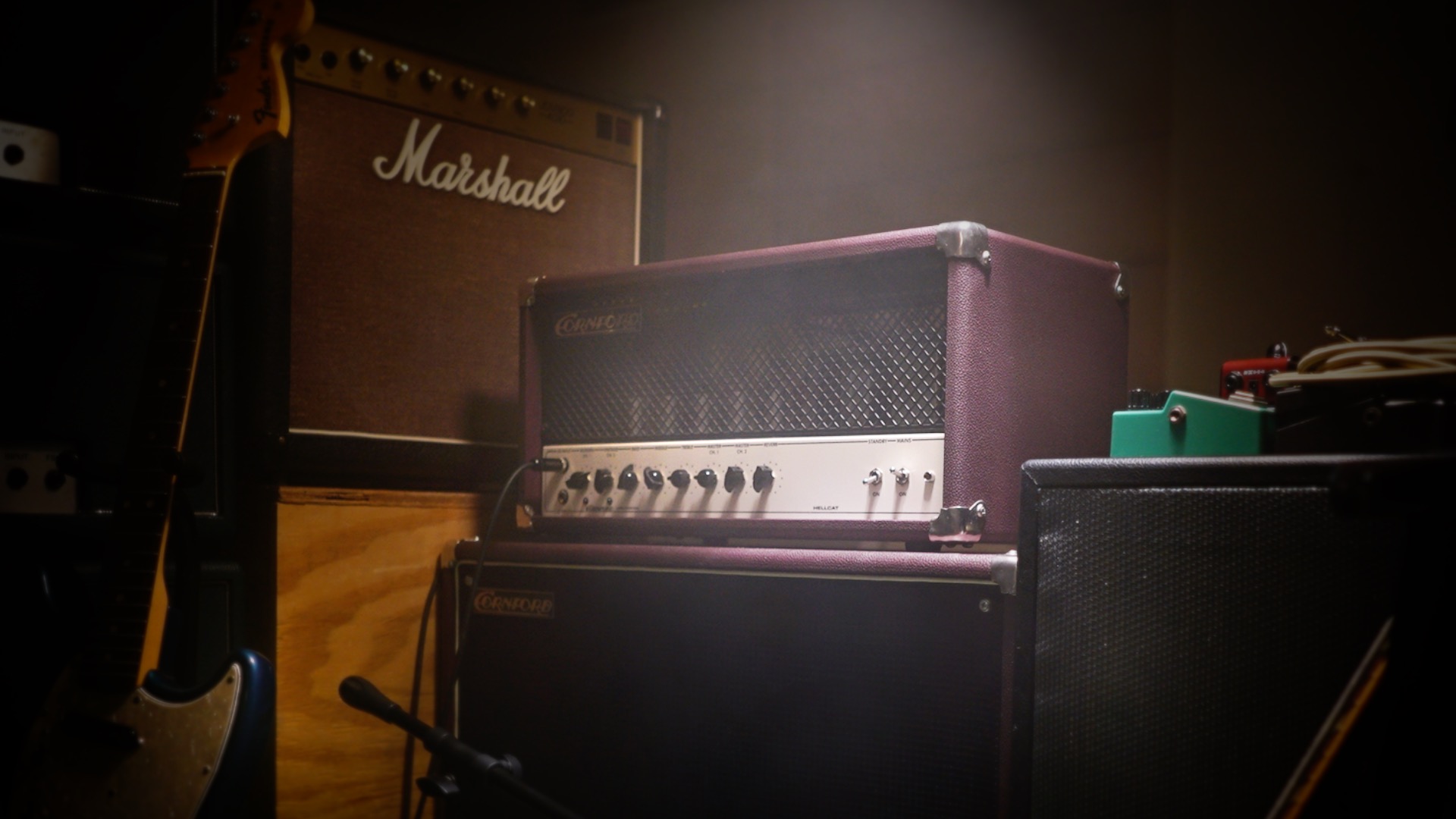
You may have noticed we like to tinker! From cabinet builds to custom hardware to VR experiments, we’re always trying something new, whether to perfect a distinctive sound, or capture heretofore unseen technical details.